Capability
Task tracking
Manual QA is more than running steps. You need to remember retests, prep for release, and keep track of what is due today. The Tasks page is a lightweight to-do list built into the extension, tied to your defects.
A calendar-style to-do list
A compact date strip sits at the top — it shows one week at a time. Use the single arrows to page through the dates and the double arrows to jump a whole month, with a dot on days that have work. Pick any day to see that day's To do and Done lists. Each task shows a colour accent for its priority, an optional time, and a round check button to complete it. Overdue work surfaces at the top of Today so nothing slips.
Fast to add, fast to clear
Add tasks with a title, date, time, priority, and tags. Tap the floating + button to add a task to the selected day, swipe a card to reveal Delete, and search or filter by kind, status, or tag when the list grows.
Three task kinds
- Work — general QA chores, prep, or follow-ups.
- Defect retest — linked to a resolved or fixed defect.
- Go-live — release-readiness items like sign-off or a smoke run.
Defect retest suggestions
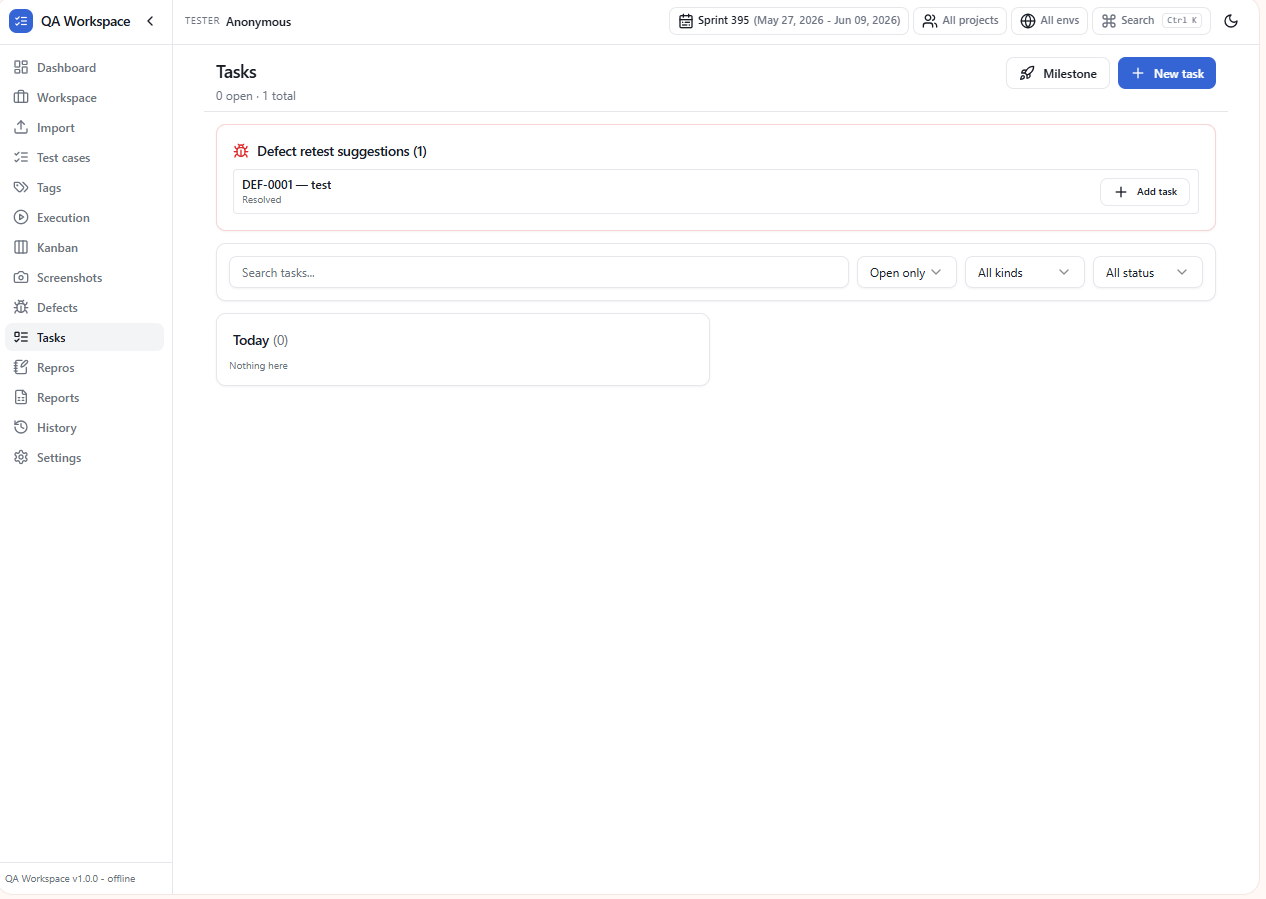
When a defect moves to Resolved or Fixed, it shows up in a suggestions panel. One click creates a retest task with the defect ID and title already filled in.
Tasks workspace
Retest suggestions, filters, and today’s queue in the side panel.
On the dashboard
Overdue and today’s tasks also appear on the dashboard. Mark items done or jump to the full Tasks page without digging through menus.
Stored locally
Tasks live in the same offline storage as your suites and runs. Nothing syncs to a server until you export a report.
Use cases
Today list
A focused queue of what you owe the team today — retests, blocked items, and follow-ups.
Auto-suggested retests
When a defect moves to Ready to verify, a retest task is suggested for the linked test case.
Go-live checklist
Track release-readiness items (smoke run, sign-off, vendor approval) in one place.
Snooze & reminders
Snooze a task until a specific date so it disappears from Today until it's actionable again.
Tips
- Use the month calendar to plan ahead — dots mark days that already have work.
- Add a time to a task and cards sort themselves by time of day.
- Swipe a card left (or drag with the mouse) to reveal Delete.
- Tasks survive browser restarts and are included in the data export.