Capability
Test case management
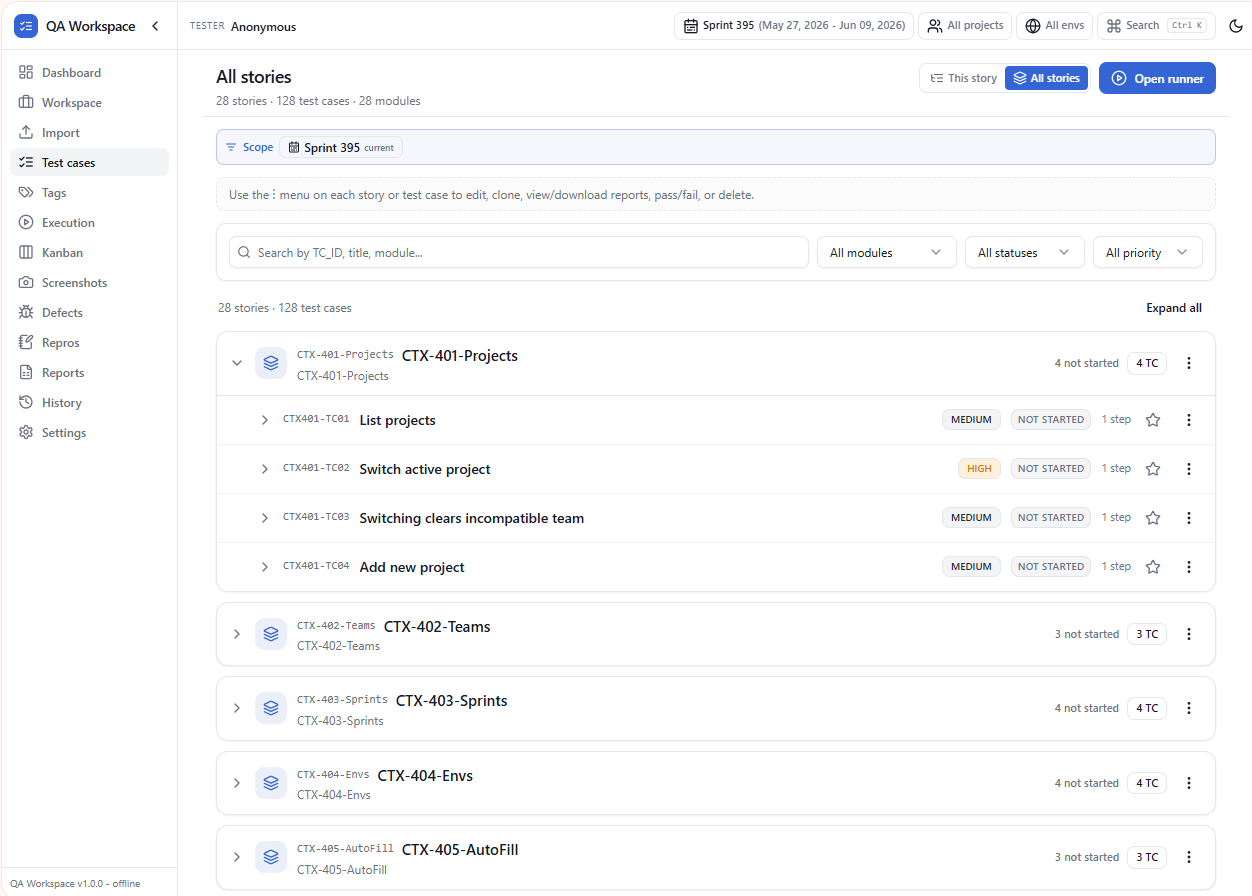
A focused side-panel UI for the day-to-day: search, filter, favorite, expand steps inline, and edit without losing context.
How to use it
- 1 Click Test cases in the side panel left rail to open the list.
- 2 Use the search bar (press /) to filter by TC ID, title, module, or step text.
- 3 Combine the module, status, priority, and tag filters in the top bar to narrow further.
- 4 Click any test case to expand steps and expected results inline. Double-click a step to edit it.
- 5 Star the cases you re-run often — favorites show up at the top by default.
Use cases
Regression sweep
Filter to <em>Smoke</em> tag + <em>Auth</em> module to run a 12-case smoke suite in 10 minutes.
Defect verification
When a defect moves to <em>Ready to verify</em>, jump straight to its linked test case from the task list.
Quick edits
Fix a typo or update an expected result mid-run without leaving the side panel.
Multi-story view
Switch between imported stories from the dropdown — each carries its own filter state.
Tips
- Steps support multi-line content — preserved from your Excel import.
- Right-click a test case for Run, Clone, Move to module, and Delete.
- The list remembers your last filter combination per story.