Capability
Settings & customization
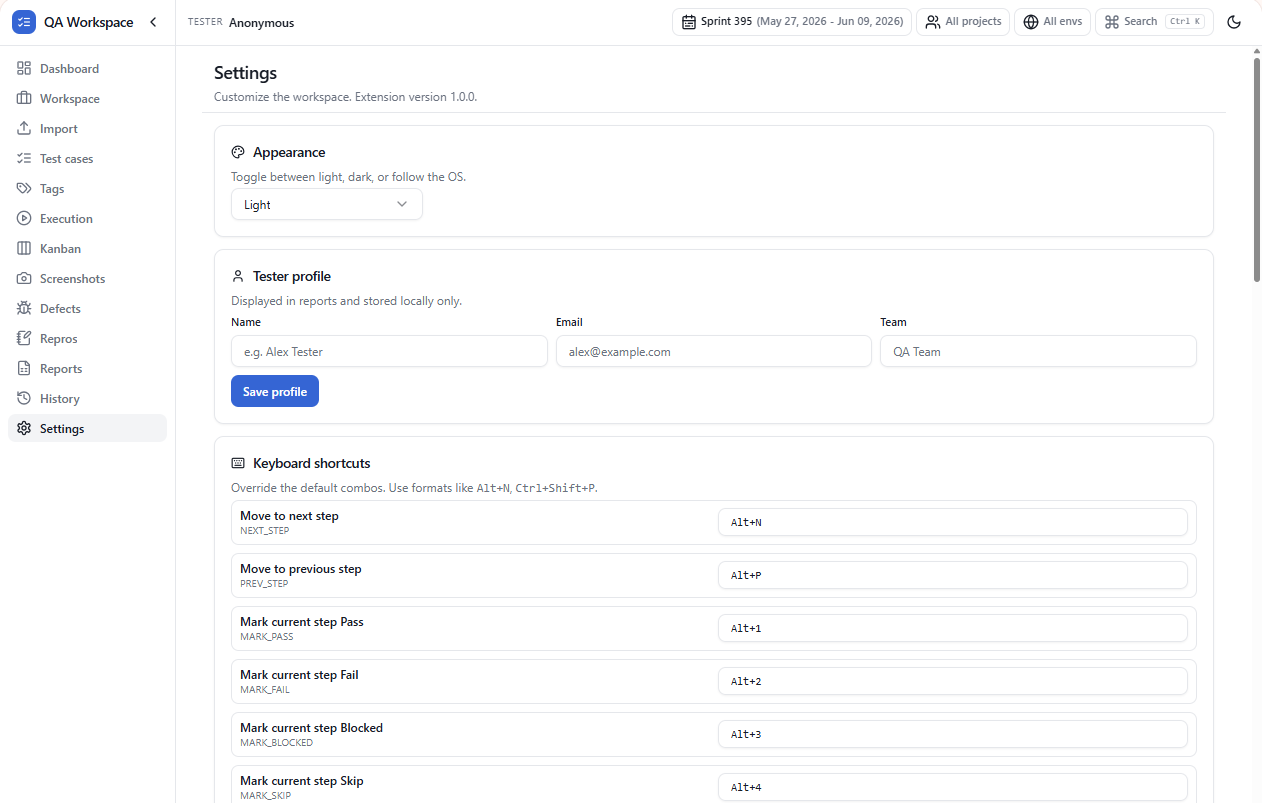
One panel to make QA Workspace yours: theme, shortcuts, tester profile, companion behavior, and total control over your local data.
How to use it
- 1 Click Settings at the bottom of the side panel left rail.
- 2 Pick a theme (Light / Dark / System) — the side panel and companion follow it.
- 3 Open Shortcuts to remap any default — every action can be rebound.
- 4 Set your Tester profile (name, role) — it stamps every report and history event.
- 5 Use Data to export all local data as a ZIP, or wipe it (no recovery — confirm twice).
Use cases
Conflict-free shortcuts
If your OS hogs <kbd>Alt</kbd>+<kbd>S</kbd>, remap the screenshot shortcut in two clicks.
Compliance wipe
End-of-project? Wipe local data in one click — the extension returns to its first-install state.
Portable setup
Export the full local state and re-import on another machine to keep your tester profile and shortcut prefs.
Dark side panel for late shifts
Set Dark theme and the companion automatically picks up the same scheme.
Tips
- Shortcuts validate against conflicts — you can't accidentally rebind two actions to the same combo.
- Setting changes are live; no reload required.
- The export ZIP includes screenshots, history, and suites — it's a complete backup.